
Logging In to Your Account
## Logging In to Your Account
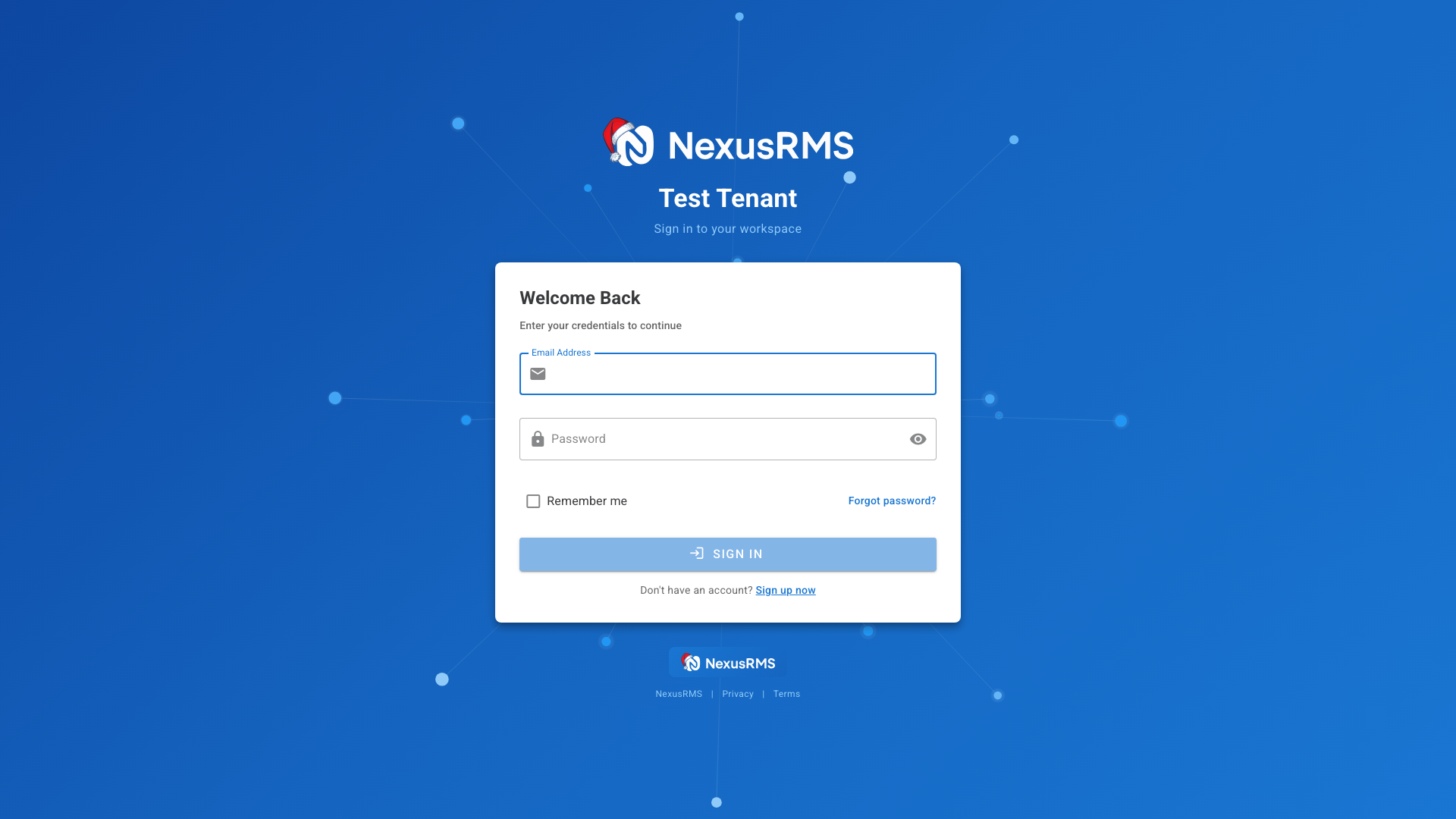
Accessing NexusRMS is straightforward. Your company has a dedicated subdomain (e.g., `yourcompany.nexusrms.io`) where you and your team log in.
### Standard Login
1. Navigate to your company's NexusRMS URL
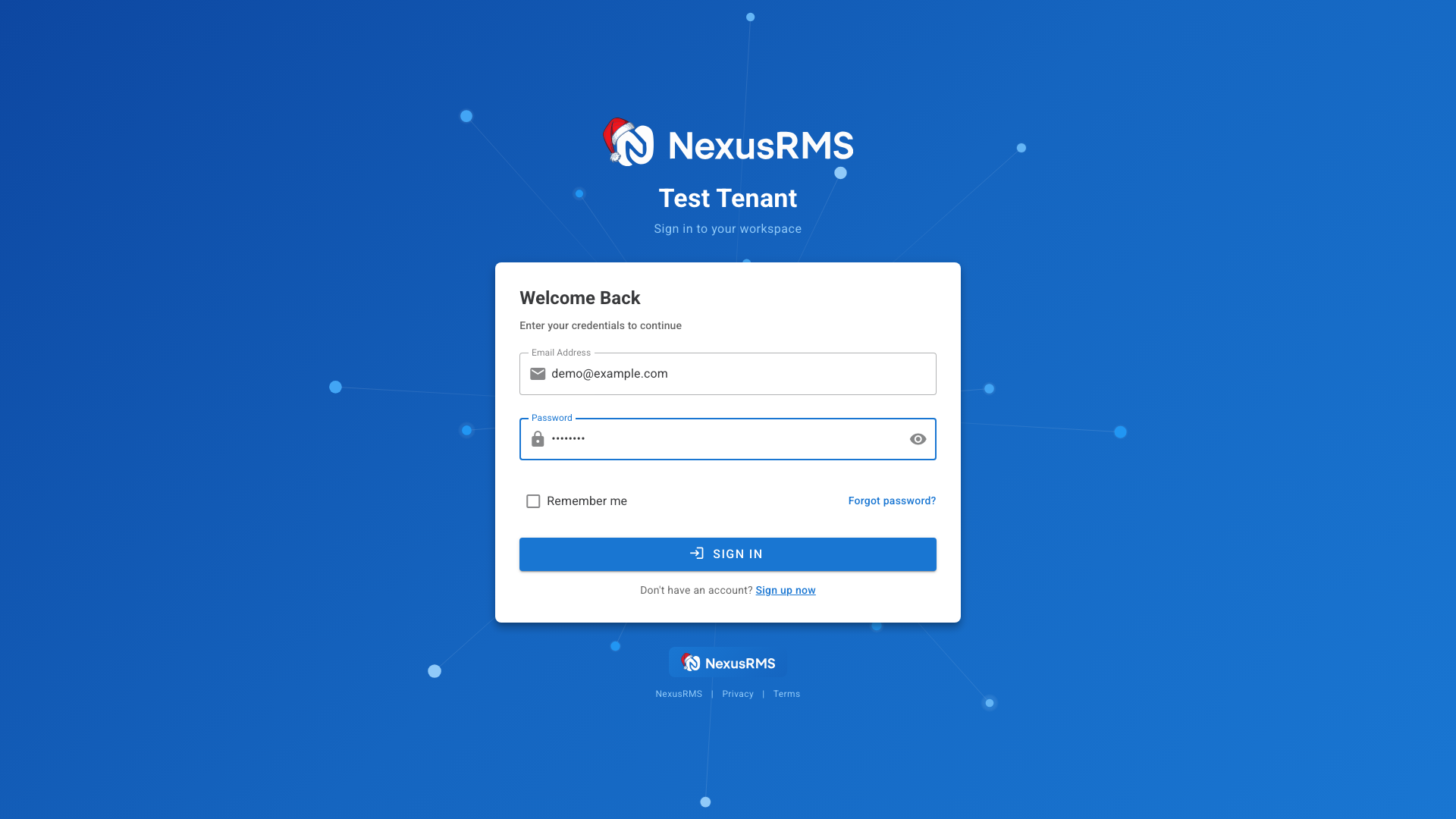
2. Enter your **email address** in the first field
3. Enter your **password** in the second field
4. Optionally check **Remember me** to stay logged in
5. Click **Sign In**
### Password Tips
- Passwords must be at least 8 characters
- Use a mix of letters, numbers, and symbols
- Never share your password with others
- Use a password manager for security
### Two-Factor Authentication (MFA)
If your account has two-factor authentication enabled, you'll see an additional screen after entering your password:
1. Open your authenticator app (Google Authenticator, Authy, etc.)
2. Enter the 6-digit code displayed
3. Click **Verify**
If you've lost access to your authenticator app, you can use a recovery code instead. Click "Use a recovery code instead" and enter one of your saved recovery codes.
### Forgot Password?
If you've forgotten your password:
1. Click **Forgot password?** on the login page
2. Enter your email address
3. Check your email for a reset link
4. Click the link and create a new password
### Troubleshooting
**Can't log in?**
- Double-check your email address for typos
- Ensure Caps Lock isn't on
- Try resetting your password
- Contact your administrator if issues persist
**Account locked?**
- After multiple failed attempts, accounts may be temporarily locked
- Wait 15 minutes and try again
- Contact your administrator if urgent
Was this article helpful?